2. The setup page
Connect your own accounts once. CloudCLI and Paperclip both use them, and nothing needs a redeploy.
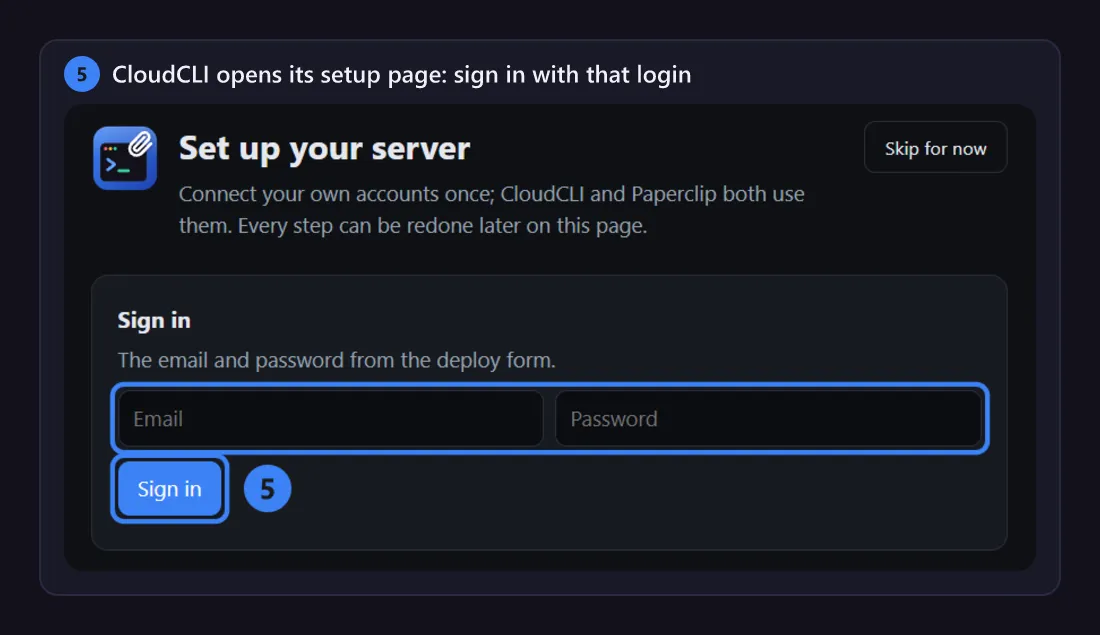
CloudCLI opens its setup page until you finish it or press Skip for now. You can open it again at any time at /setup on CloudCLI’s address, and redo any step there.
-
Sign in with the email and password from the deploy form.
-
1. Claude: press Start. The page runs Claude Code’s own
claude setup-tokenon your server and shows its link. Open the link, sign in to your Claude account and approve. Then paste the code it shows back into the page and press Submit.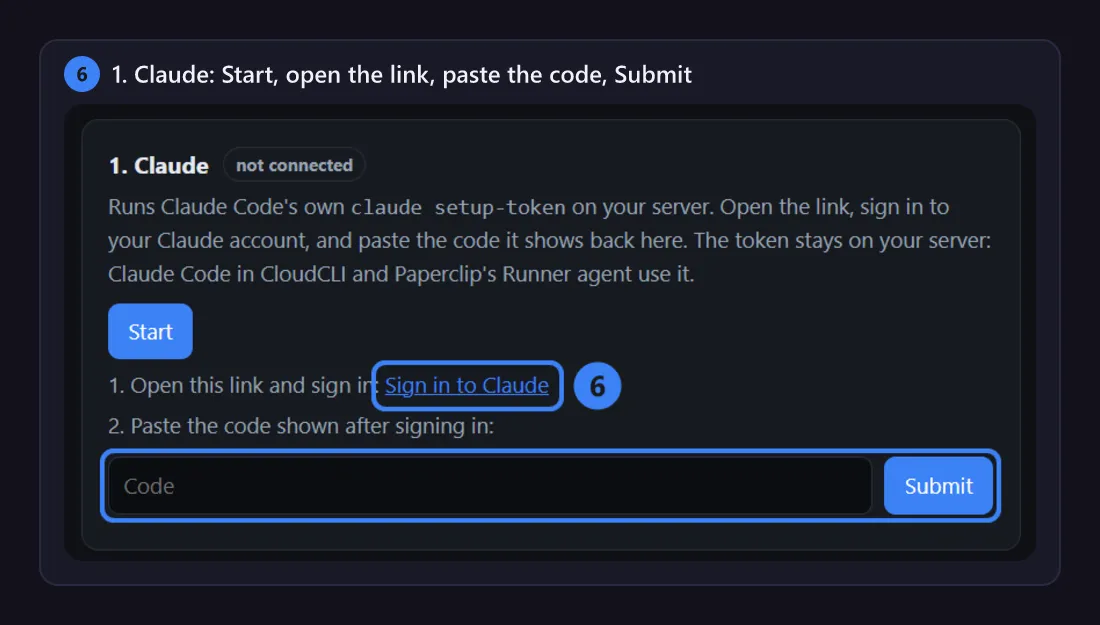
-
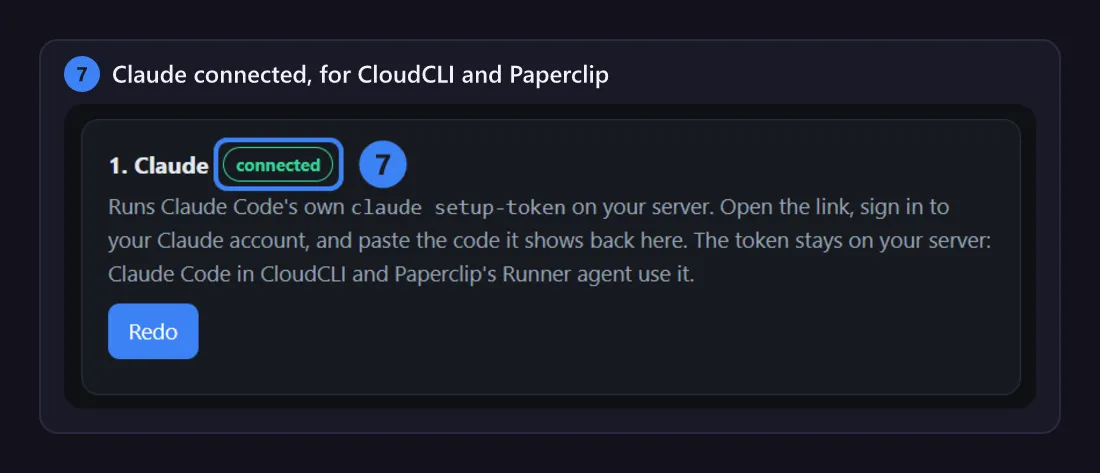
The card says connected. Claude Code in CloudCLI and Paperclip’s Runner both use this sign-in, with no redeploy.
-
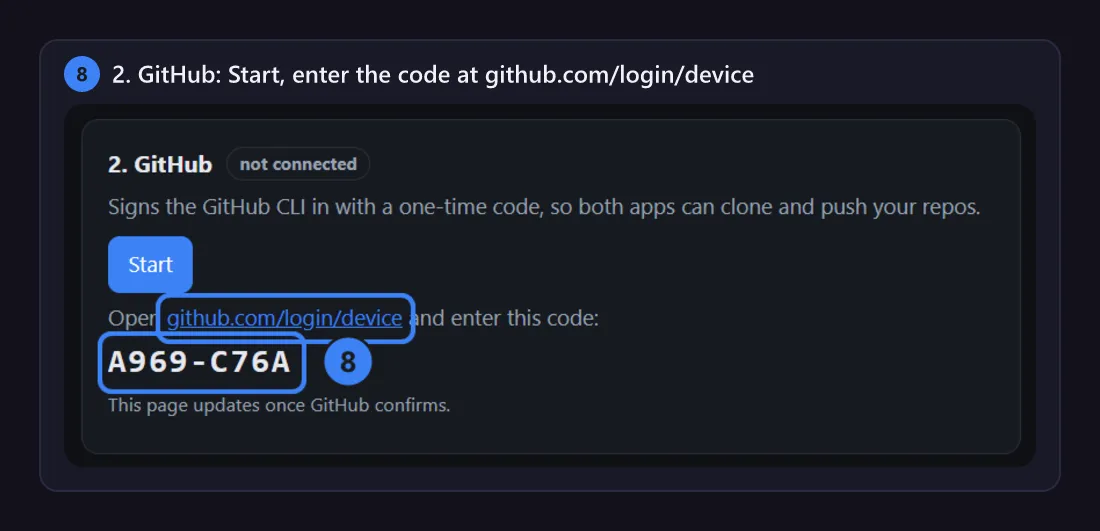
2. GitHub: press Start. Open github.com/login/device, enter the code the page shows and authorize. Both apps can then use your repos, private ones included.
-
3. Your repo: choose the repo for your jobs and press Use this repo. Once GitHub is connected, the page lists your repos. You can also type
owner/nameor the repo’s address.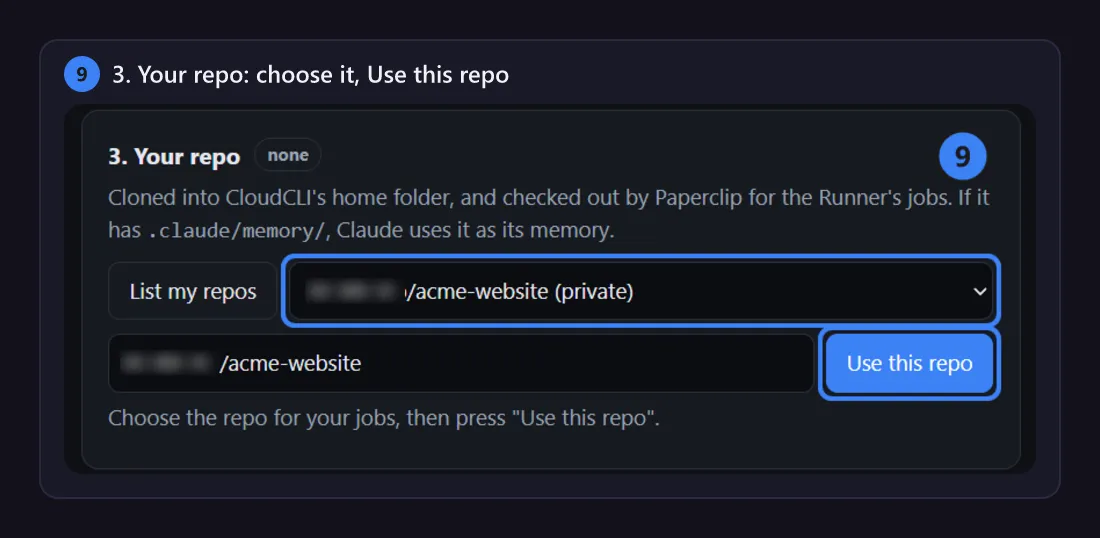
-
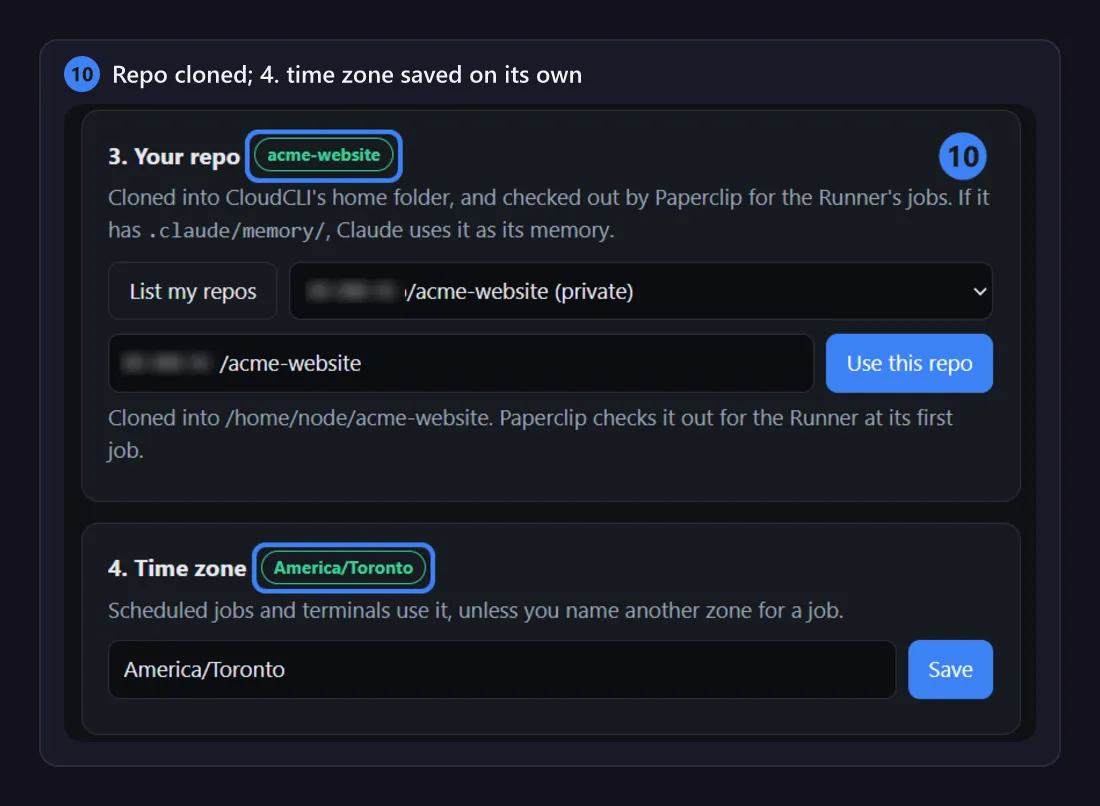
The repo is cloned for both apps, and 4. Time zone comes from your browser without a click. Press Finish and open CloudCLI at the bottom.
What each step does
Section titled “What each step does”| Step | What it does | Where it is kept |
|---|---|---|
| 1. Claude | Runs Claude Code’s official claude setup-token and relays its link and your code. The token it prints stays on your server. |
Claude Code’s settings on CloudCLI, and a secret in Paperclip bound to the Runner. |
| 2. GitHub | Signs the GitHub CLI in with a one-time code (gh auth login), so both apps can clone and push your repos. |
The GitHub CLI’s sign-in on CloudCLI, and the secret GITHUB_TOKEN in Paperclip. |
| 3. Your repo | Clones the repo into CloudCLI’s home folder and gives it its own project in Paperclip. Adds it; never replaces one. | CloudCLI’s volume; Paperclip checks it out itself at its first job. |
| 4. Time zone | Saves your browser’s time zone. New jobs and terminals use it. | The setup state on CloudCLI. |
| Optional: Codex | Signs OpenAI’s Codex in with your ChatGPT account, for jobs you choose to run with it. See Codex. | Paperclip’s own AI connection. |
Good to know
Section titled “Good to know”- Redo any step at
/setup. A step that is done shows Redo instead of Start. - Claude’s code is single-use. If Claude doesn’t accept it, press Start again for a new link, then paste the new code.
- A private repo needs GitHub connected (step 2) before step 3 can clone it. A public repo clones without it, but Claude can’t push your jobs to it until GitHub is connected.
- The time zone is saved on its own the first time. Type another IANA name (such as
Europe/Paris) and press Save to change it. - More repos: come back to step 3 and add another. Each repo shows as a pill in the step’s title. See Several repos.
- Skip for now stops the redirect to the setup page. Claude keeps reminding you in the chat until Claude is connected.
Continue with 3. Your first job.
Paperclip (w/ CloudCLI) is a Railway template by AvgSoft. Paperclip, CloudCLI, Claude Code, Codex and Railway belong to their makers. Template codeDeploy on Railway